Office for Web Integration

You can view and edit Office documents – Word, Excel and PowerPoint – in RedEye on the web using the Office viewer embedded in the Artefact page.
You can:
- View Office files within RedEye using Office for the web
- Check out and check in Office files
- Edit Office files using Office for the web
NOTE
The integration is an OPTIONAL feature and available on the web app only – the mobile experience will remain unchanged. Please contact your Customer Success Manager to discuss enabling this feature.
View an Office document
When an artefact is a native Office file (Word, Excel, PowerPoint) it will be displayed within the Office viewer on the Artefact page.
You DO NOT need an Office 365 subscription to view an artefact in Office.
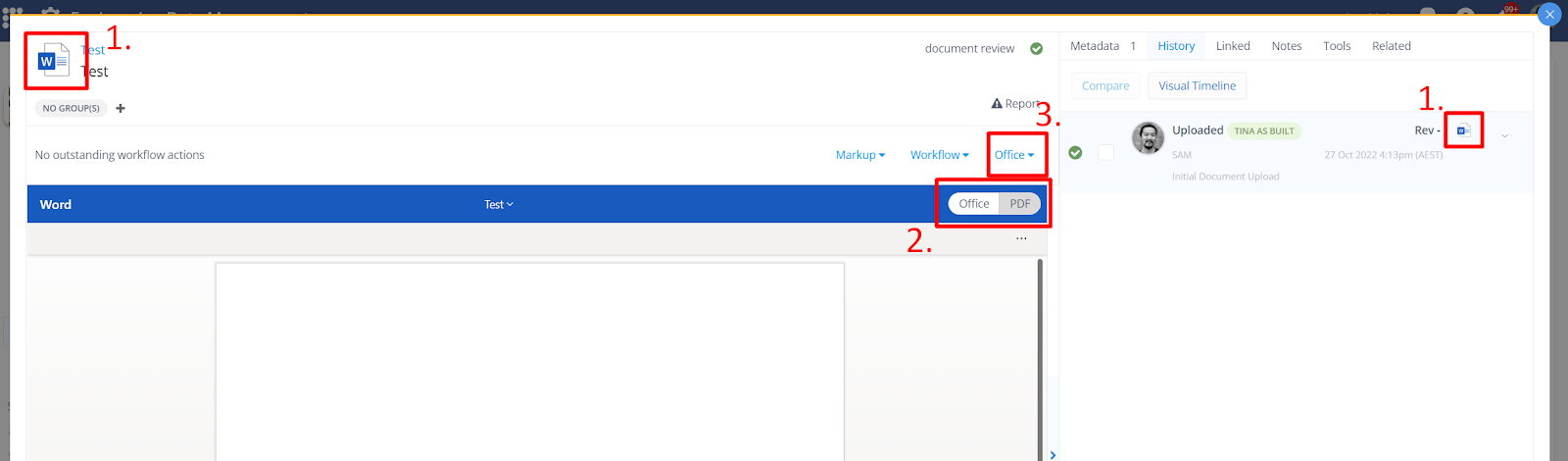
- The Office filetype icon is displayed in the top-left of the artefact preview and in the History card.
- You can toggle to switch between 'Office' and 'PDF' view modes. The default view is Office.
- You can access the Office Action menu by expanding the drop-down menu.
File displayed as a PDF
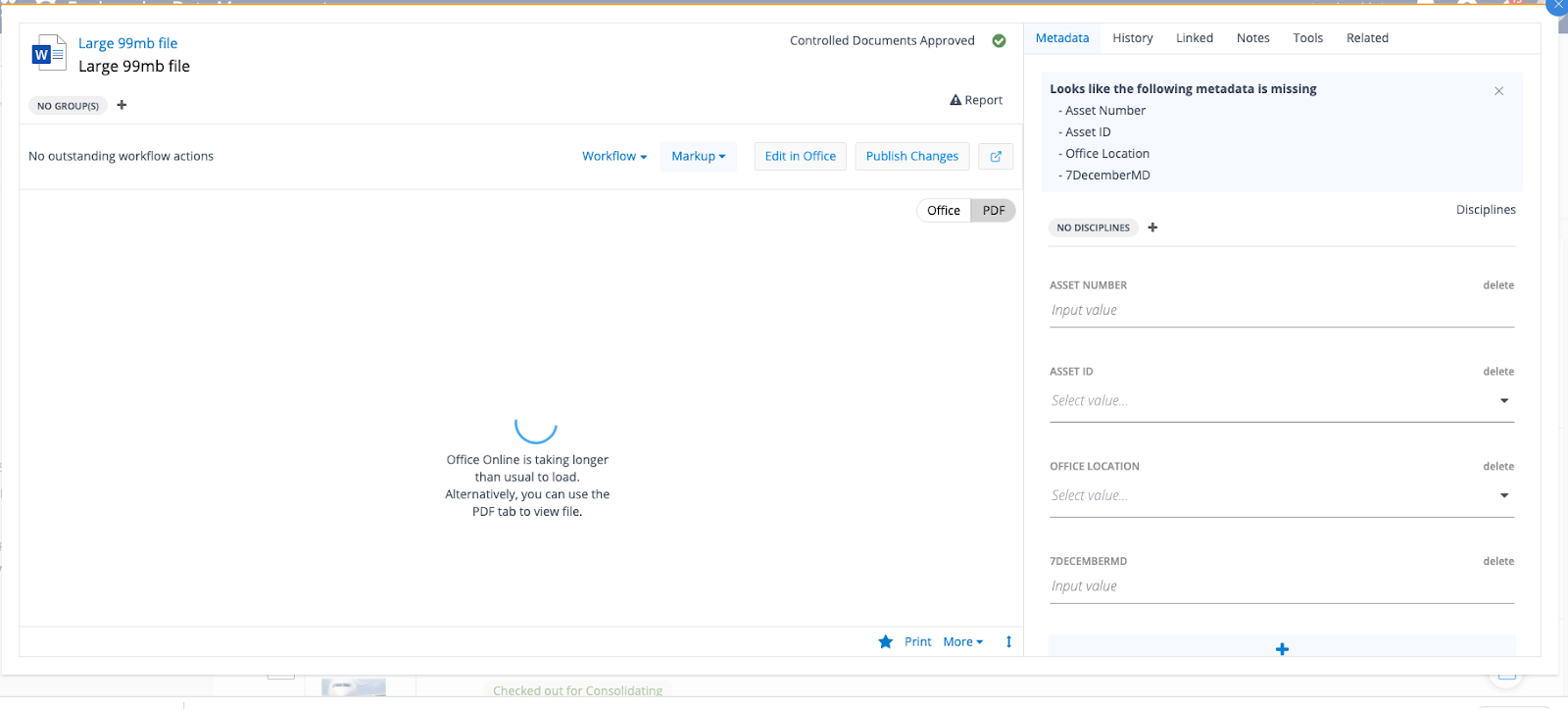
If the Office file is over the file size limit or loading is delayed, it will be displayed as a PDF and a message is displayed as below:
"Office Online is taking longer than usual to load. Alternatively, you can use the PDF tab to view file"
Action menu
Under the Office button, you'll see 3 options available where applicable to interact with your Microsoft Office files stored in RedEye.
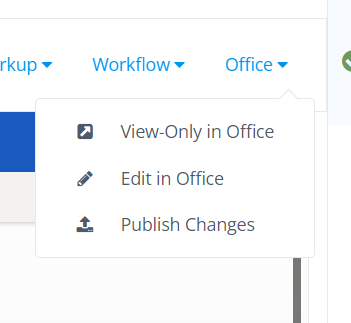
- View-Only in Office
Allows users to view Office files in a new tab in fullscreen in the typical O365 fashion. - Edit in Office
Opens the document in Edit mode in a new tab within Office for the web. - Publish Changes
Finalises the editing and create a new revision of the document in RedEye with the edits.
Editing in Office
Inactive artefacts
When there are no outstanding workflow actions, the 'Edit in Office' button will be available if:
- The native file type is a Word, Excel, or PowerPoint
- A User has the Group Editor role OR Bucket Editor role
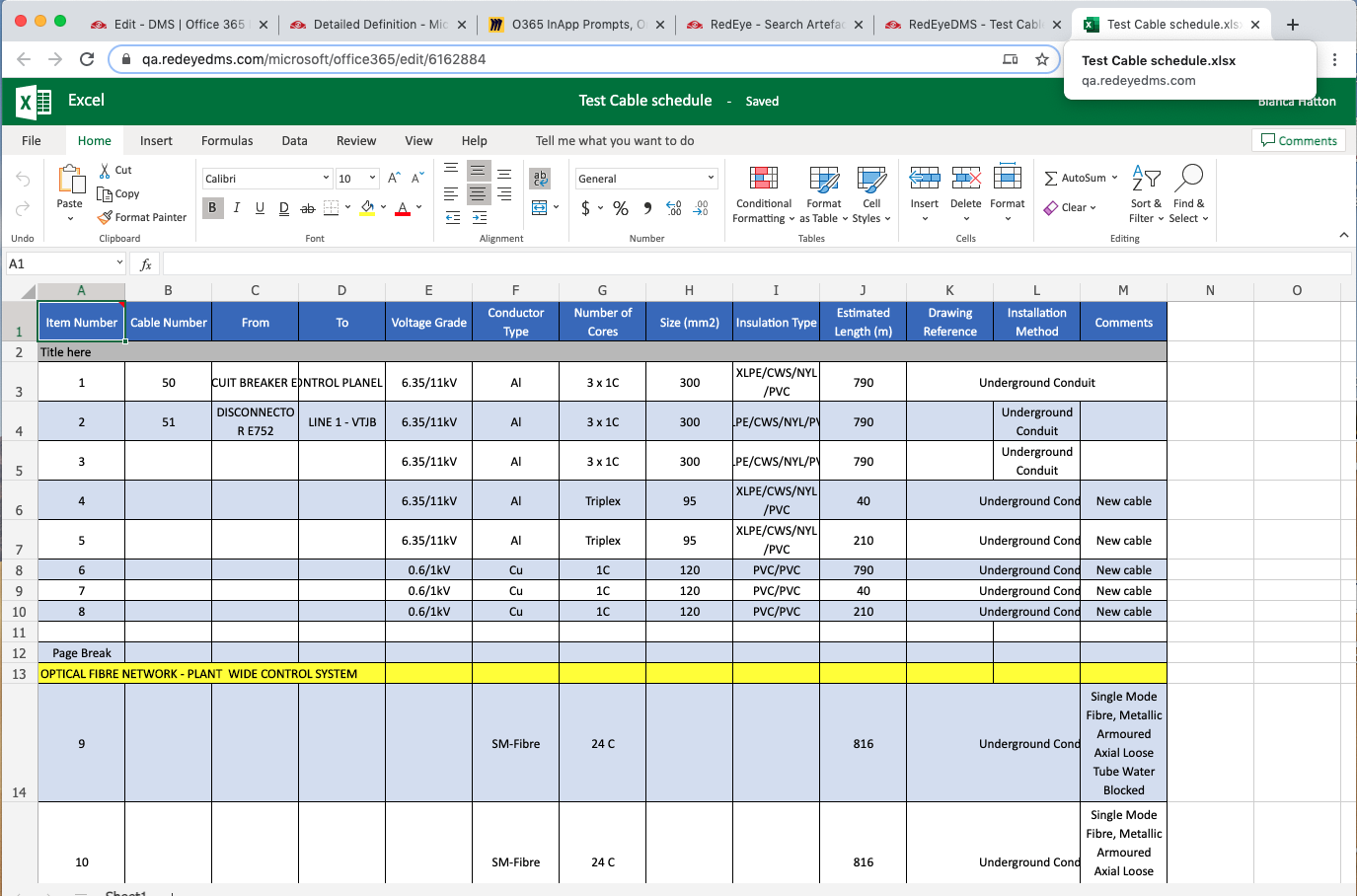
Clicking on 'Edit in Office' will open the document in Edit mode in a new tab within Office for the web. This creates a ‘draft’ of the document in Office365 and
- Any user with edit access can simultaneously edit this draft.
- Changes are saved as users are editing
- The tab can be closed when editing is done.
NOTE
Any changes made in Edit mode won’t show in the preview on the Artefact page until they’ve been published.
Publish Changes
The 'Publish Changes' button will finalise the editing and create a new revision of the document in RedEye with the edits. When you choose to publish changes, RedEye will check Office 365 for the latest draft document and create a new version of the artefact.
When the changes have been successfully published a new version will be created. The preview is refreshed and a record is displayed in the History tab:
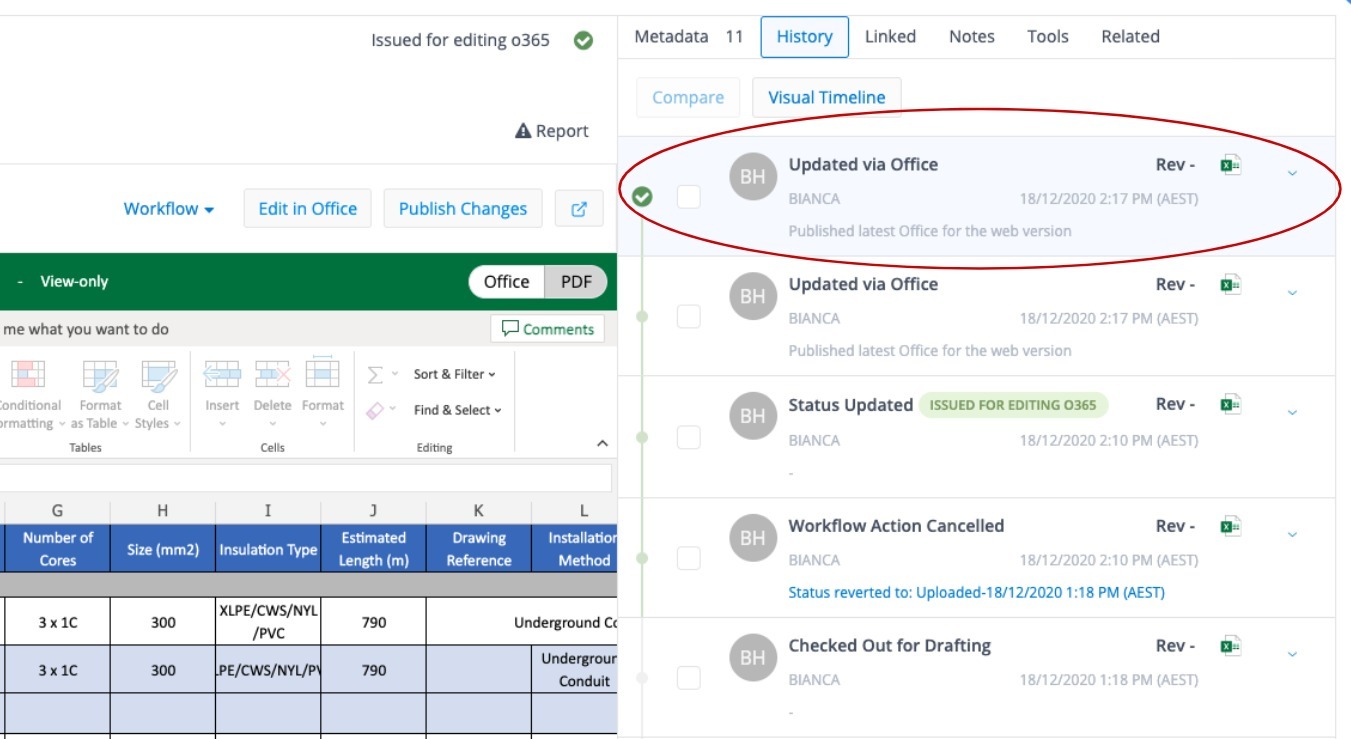
Office has a regular frequency for ‘sending’ updates which is different for each app:
|
App |
Refresh Frequency |
|---|---|
| Excel | 2 minutes |
| Word | 30 seconds |
| PowerPoint | 60 seconds |
RedEye detects and displays changes inline with Office refresh rate.
Active artefacts/controlled documents
When the artefact is active in a workflow, the 'Edit in Office' button will show if:
- The native file type is a Word, Excel, or PowerPoint
- The artefact has been checked out
- The user has permission on the Check Out step
- The ‘Edit in Office’ button in the Office menu will open a new tab with the Office file in edit mode.
- You can also download the file to be edited offline.
Checking in an Office document
When a document has been 'Checked Out' and edited in Office, it can be 'Checked In' without uploading a file.
When you click on the 'Check In' button a modal appears with the following options:
- Check-in Office online version
- Upload a document
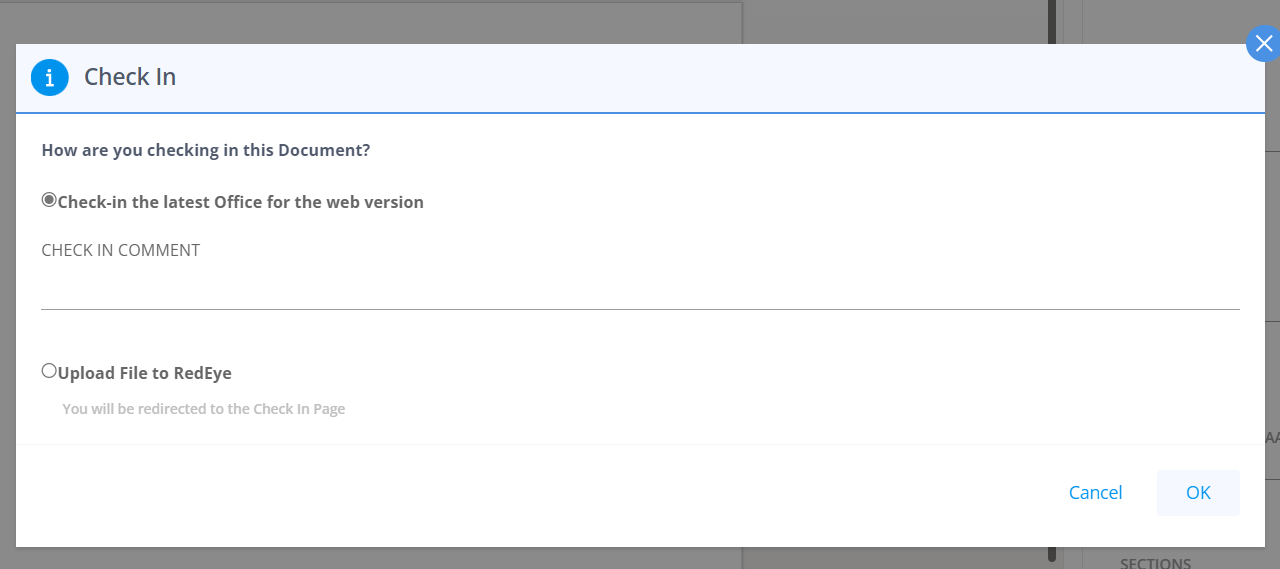
Rules for Check In
-
If a document is Checked Out and Downloaded but never Edited Online, it can only be Checked In by uploading a new document.
-
If the artefact has been Edited Online (and therefore a draft exists) the user should Check In the online version but they’ll have the option to Check In by uploading a file.
-
Any user who can edit the document (i.e. has permission on the Check Out step in the workflow), or is Bucket Administrator, can Check In the artefact.
-
A user can Check In a new version of the artefact by uploading a file that is a different file type to the original native file, provided it is still an acceptable document type
-
If the next step after Check In is 'Review', the user has the option to delegate the Review to someone else.
Editing when not signed in to Office 365
An Office 365 subscription is required; when clicking 'Edit in Office' if you are not logged in to Office 365 or do not have an Office 365 subscription, you will get a prompt as below:
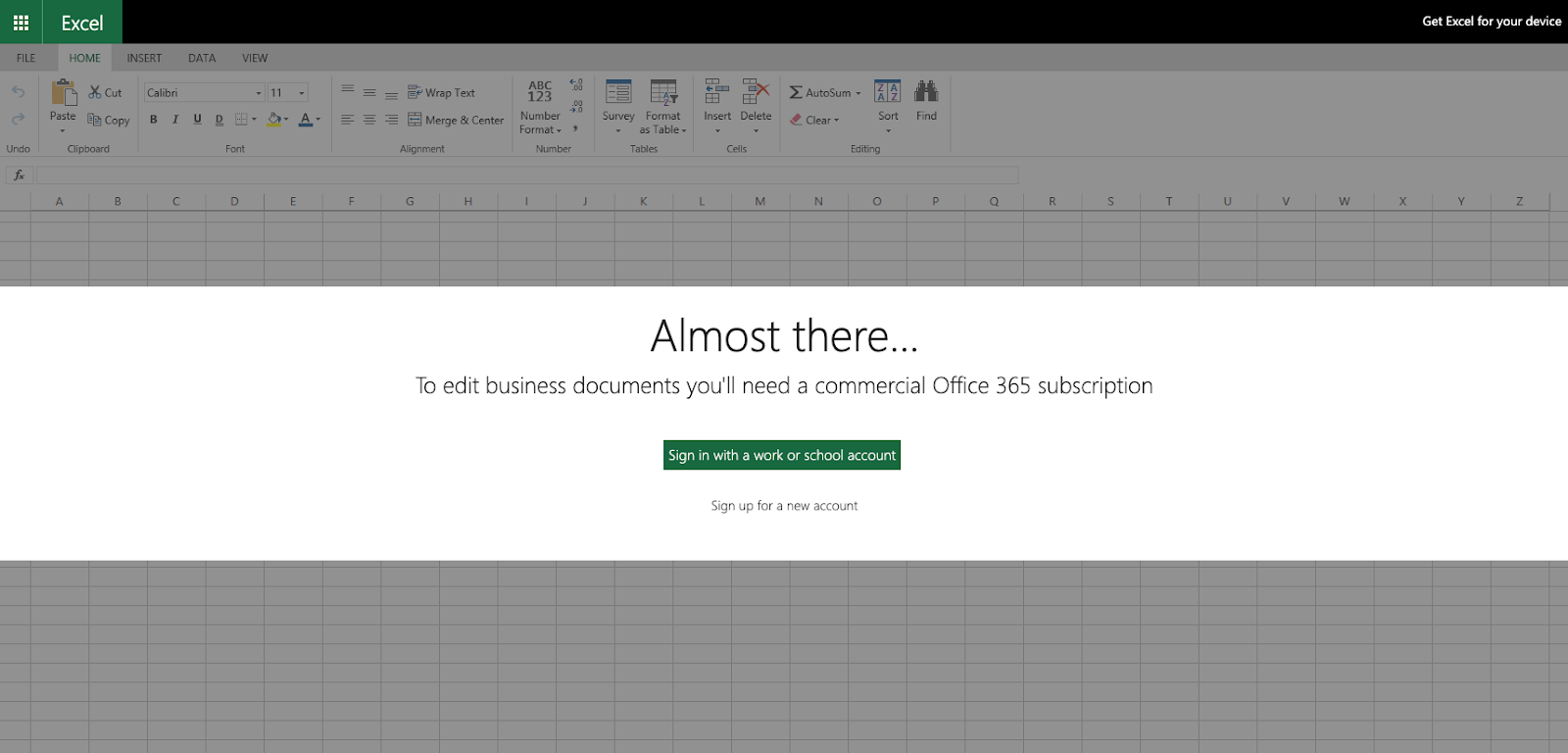
Review/Approval stage
Edit at the Review step
On the Artefact page when the Review/Approval Tool button is shown, the 'Edit in Office' button is available if:
- The artefact is a native Office file
- The artefact has been checked in, into a workflow where current or previous status is 'Checked In'
- The next step in the workflow is a Review step type
- You are a Reviewer
When the artefact is at the Review/Approval stage, there will be the option to 'Edit in Office' before submitting the review.
As a Reviewer/Approver, you may need to make minor changes to the content of the document before completing the review. After editing in Office, if you want those changes to be published then you should choose 'Publish Changes'.
This will update the preview and make those changes visible in the Review Tool.
Permissions Rules
- Users with Review/Approve permissions will be granted access to the Editor without having to have the Editor role.
NOTE
Group Reviews cannot be done via 'Edit in Office' and will use the native RedEye Review Tool.
Output of the Review Tool
After a review is submitted, the latest version of the artefact is a PDF; this is what the Review Tool generates. However, the latest NATIVE version of the artefact will not be overwritten.
If the artefact progresses in the workflow and is checked out in the future, the latest NATIVE version will be made available for editing.
After the review is completed you’ll see, as below, the file icon has changed to a PDF.
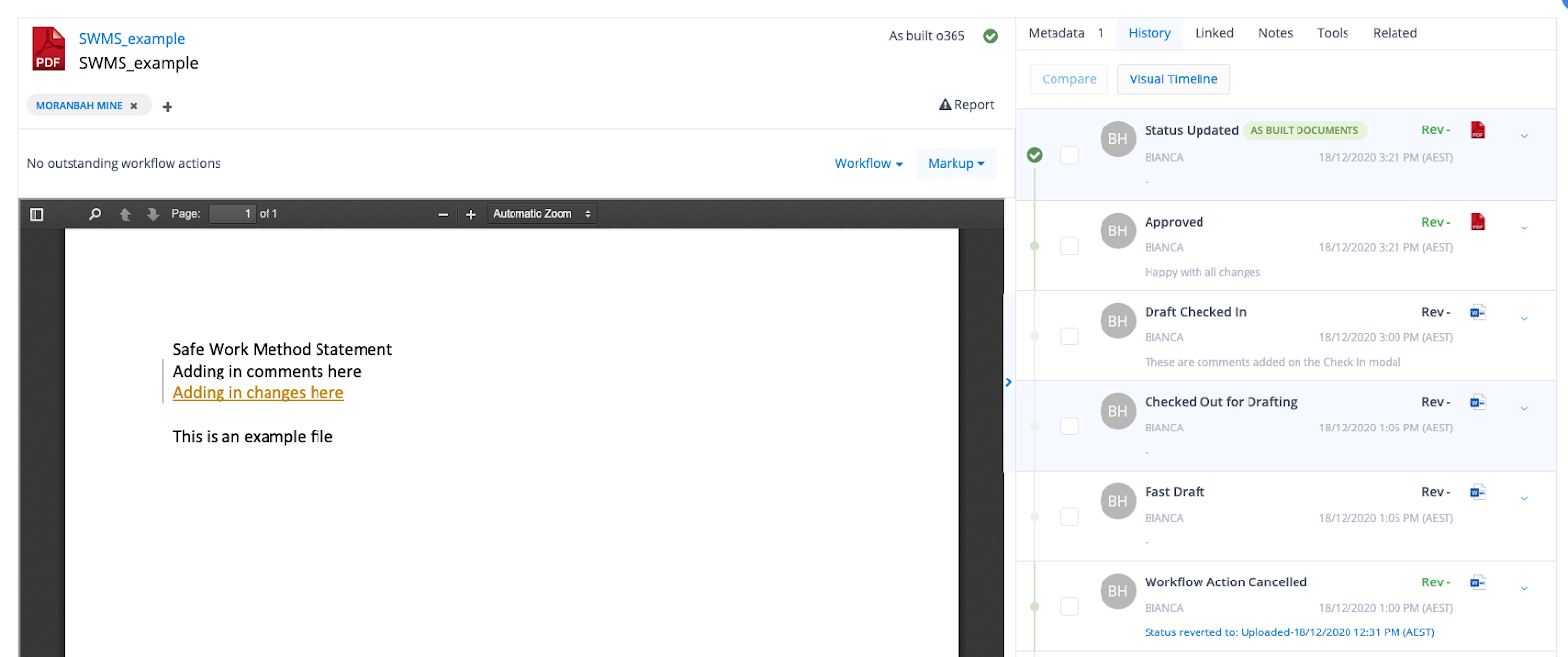
If you perform a Fast Draft and the artefact is Checked Out, the 'Edit in Office' button will become available. This makes the latest published native version available for editing.
Making updates and not Publishing Changes
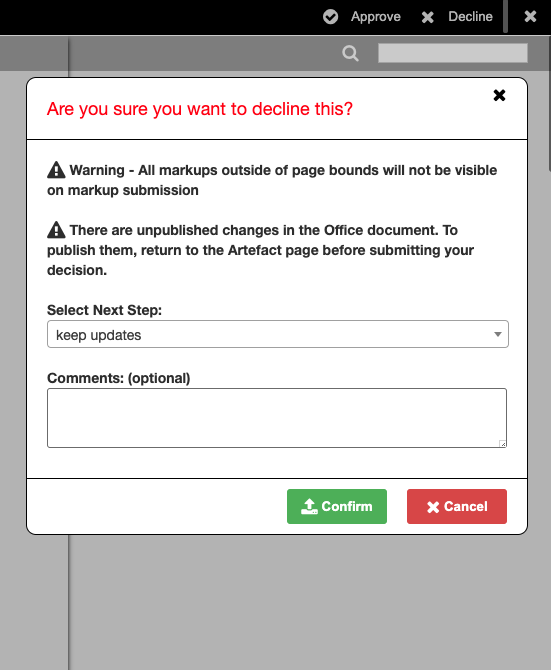
If changes have been made in the Office document via 'Edit in Office' but 'Publish Changes' hasn’t been clicked, when you go into the Review Tool and submit a decision, a modal will advise:
“There are unpublished changes in the Office document. To publish them, return to the Artefact page before submitting your decision”.
You can either publish the changes or choose not to and proceed.
Old versions of Office files
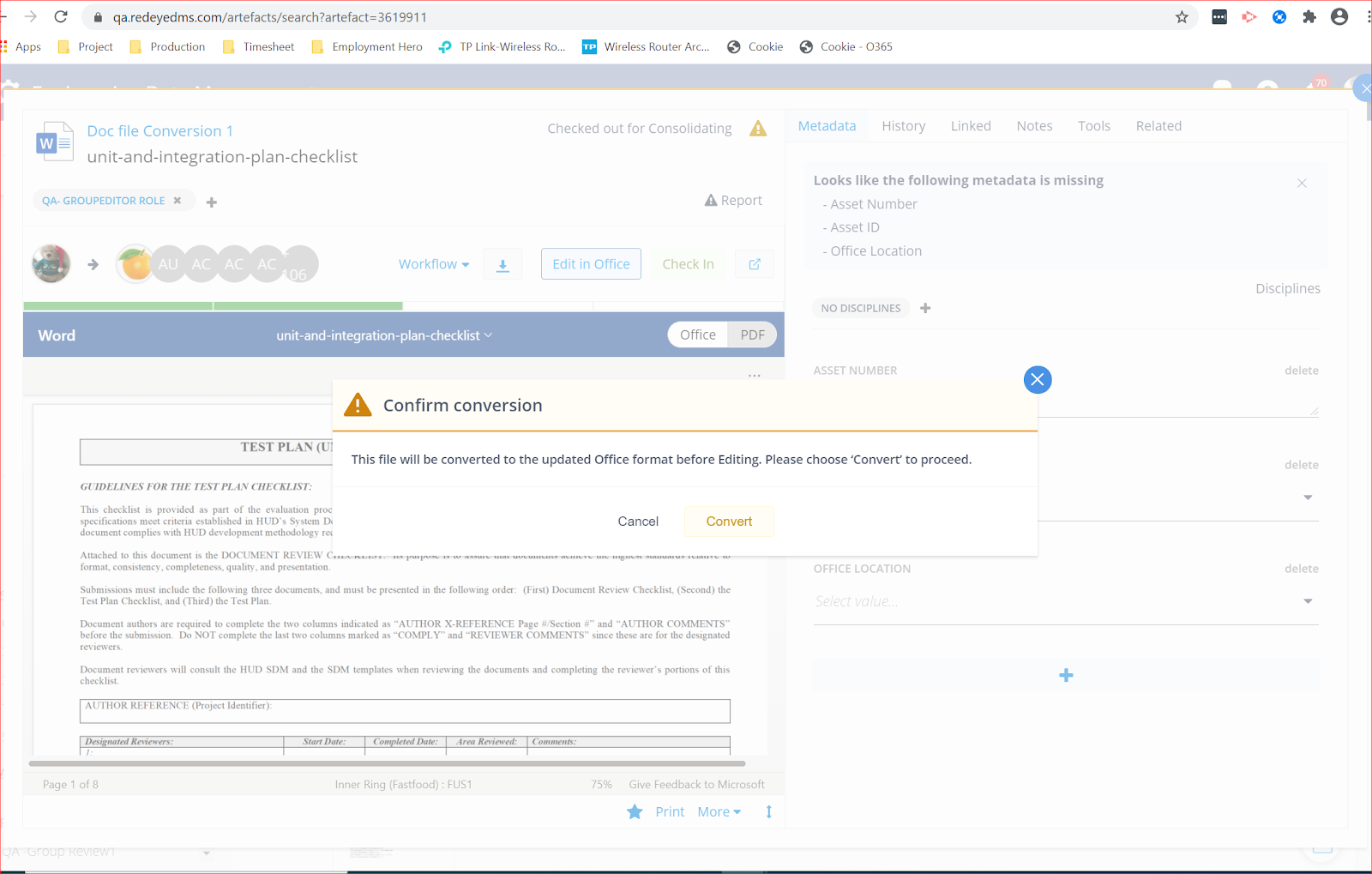
Old/binary versions of Office files, e.g. .doc, .xls, .ppt can’t be edited until they are converted to the new file format.
When you choose to edit an old version of an Office file you will be advised it will be converted to .docx, .xlsx, .pptx; RedEye will convert the file and change the filename.
The notification will only show to the user that initiates the first editing of the document in Office. Once a draft has been created the file is now in the new file extension format.
NOTE
There will not be an indication in the History tab that the file has been converted. This is because a new revision hasn’t been created.
The file icon tooltip will still show the old extension type but once the artefact is published/checked in and a new revision created, the filetype will be updated.
When a user clicks 'Edit in Office', this message will appear:
Bulk Check In of Office documents
Office Online does not offer a Bulk Check In function. You can continue to use the native RedEye Bulk Check In for Office Documents.
Please note there is a change to user permission(s) for Check In:
- A user who can edit the document, i.e. has permission on the Check Out step in the workflow or is a Bucket Administrator, can Check In the artefact.
- A user can Check In a new version of the artefact by uploading a file that is a different file type to the original native file, provided it is still an acceptable document type; e.g. a Word document can be replaced by a PowerPoint but not by a DWG.
Edit artefacts in Office For the Web
If you have any questions about Office for the web and RedEye, contact your Customer Success Manager or email [email protected].